
Updates & why they are Important
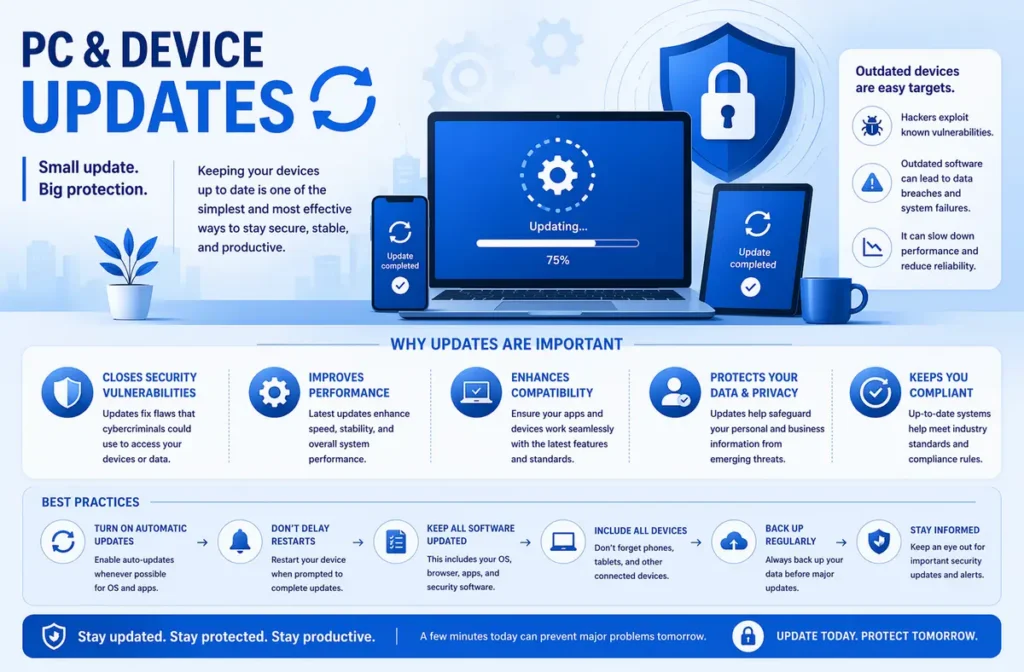
The “Update Later” Trap: Why Ignoring System Updates Costs More Than You Think
We have all been there. You are in the middle of a busy workday, deeply focused on a task, when a notification slides into the corner of your screen: “Restart required to install updates.” The immediate instinct is almost always to click “Snooze,” “Remind me tomorrow,” or simply drag the notification away.
While delaying an update might buy you a few hours of uninterrupted workflow, chronically ignoring system maintenance is a gamble with high stakes. Keeping your operating system, hardware drivers, and system firmware up to date is not just about getting the latest aesthetic changes or new features. It is the foundational pillar of network security, regulatory compliance, and the day-to-day reliability of your hardware.
Here is a look at why proactive patch management—spanning everything from Windows updates to manufacturer-specific driver and BIOS installations—is absolutely non-negotiable for modern IT environments.
Beyond the Blue Screen: Hardware Health and Performance
When we think of updates, we typically think of Windows. However, hardware-specific updates from manufacturers like Dell, Lenovo, or HP are equally critical. Your laptop is a complex ecosystem of components—touchpads, Wi-Fi adapters, power controllers, and memory modules—that all need to communicate flawlessly.
When a machine starts experiencing bizarre, localised hardware failures—such as a touchpad suddenly dying, an external monitor refusing to display, or a battery draining rapidly during sleep mode—the culprit is rarely broken hardware. More often than not, it is a software conflict.
Modern operating systems are constantly evolving. If your underlying hardware drivers (like the Intel Chipset or Dynamic Power Tuning drivers) remain stagnant while Windows advances, communication breakdowns occur. Regular machine updates ensure that power management states function correctly, preventing scenarios where a motherboard fails to wake a peripheral device from sleep. Keeping OEM updates current ensures the physical machine runs efficiently, extending its lifespan and preventing frustrating helpdesk tickets.
The Security Imperative and Compliance Mandates
At the software level, the most urgent reason to install updates is security. Cyber threats evolve daily, and threat actors constantly probe for vulnerabilities in widely used software. When Microsoft or a hardware vendor discovers a vulnerability (a CVE), they patch it. If you do not apply that patch, you are leaving a known, documented backdoor open for attackers.
From a business standpoint, this is no longer just a best practice; it is a legal and regulatory requirement. Frameworks such as GDPR, HIPAA, SOC 2, and PCI-DSS all mandate that organizations maintain secure systems. This explicitly includes applying critical security patches in a timely manner.
If a data breach occurs and forensic analysis reveals that the entry point was a vulnerability that had been patched by the vendor months prior, the resulting compliance fines and reputational damage can be devastating. Regular updates prove due diligence, demonstrating that your organization took active, verifiable steps to protect user and client data.
Beneath the Surface: BIOS Updates and BitLocker Integrity
While Windows and driver updates handle the operating system and component communication, the BIOS (or UEFI) is the deep-level firmware that controls the motherboard itself. BIOS updates are often overlooked because they require a forced restart and take a few minutes to apply, but they are arguably the most critical updates a machine can receive.
BIOS updates patch deep-seated architectural vulnerabilities that standard antivirus software cannot reach. Furthermore, the BIOS is intimately tied to device encryption protocols, specifically Microsoft’s BitLocker.
BitLocker relies on a microscopic chip on the motherboard called the TPM (Trusted Platform Module) to safely store and verify the encryption keys. The TPM constantly checks the system’s hardware state to ensure the drive hasn’t been removed and placed into a foreign, unauthorised machine.
If your BIOS firmware is outdated and begins to suffer from power state glitches or communication failures, the motherboard can temporarily lose sight of the TPM. When this happens, Windows panics. It assumes the machine has been compromised, flags the encryption state as “Unsupported” or vulnerable, and may lock the user out, demanding the 48-digit numerical BitLocker Recovery Key upon the next reboot.
Regular BIOS updates ensure rock-solid stability between the motherboard and the TPM. Note: Because a BIOS update fundamentally changes the hardware state, the update process temporarily suspends BitLocker to prevent a false-alarm lockout. Once the update is complete, the secure connection is seamlessly re-established.
Building a Culture of Maintenance
Treating updates as an afterthought is a recipe for instability and vulnerability. To protect your hardware and data, updates must be woven into the fabric of your IT strategy:
- Automate Where Possible: Utilise RMM (Remote Monitoring and Management) tools to push Windows and third-party software patches silently in the background.
- Schedule Hardware Maintenance: Use vendor-specific command-line tools (like Dell Command | Update) to script and deploy BIOS and driver updates during off-hours, minimising user disruption.
- Educate the End User: Shift the culture. Help users understand that rebooting to apply an update is not an IT annoyance, but a necessary step to keep their data safe and their computer running fast.
An updated machine is a reliable machine. By prioritizing the complete update stack—from the Windows OS down to the BIOS—you invest in the security, compliance, and longevity of your entire digital workspace.