
Remote Desktop Etiquette
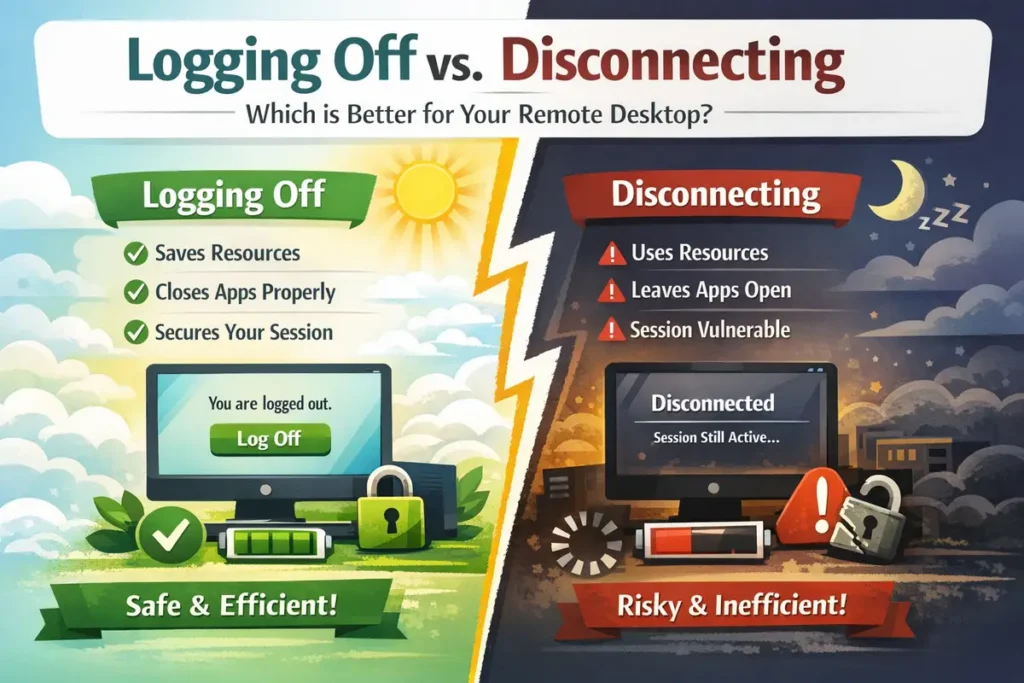
Disconnect vs. Log Off—What’s Actually Happening in a Remote Session?
Whether you are working from home, logging into a cloud environment, or accessing a specialised server for work, you probably use Remote Desktop Protocol (RDP) or a similar virtual environment daily. When you are done for the day, you are usually faced with two main options: Disconnect or Log Off (sometimes called Sign Out).
While they might seem to do the exact same thing—close the window on your screen—under the hood, the server handles them in completely different ways. Let’s break down exactly what happens to your work, the server’s memory, and which option is the most efficient.
1. Disconnecting: The “Pause” Button
Think of disconnecting like locking your office door and walking away with the lights left on. When you click the X at the top of your remote session window or choose “Disconnect,” you are cutting the visual feed between your personal computer and the remote server.
- Saving Work: Your work is preserved exactly as you left it. If you had an unsaved Word document open, an Excel sheet mid-calculation, or a specific set of browser tabs active, they all stay open.
- Server Memory (RAM): Your session remains completely active on the host server. The server continues to allocate RAM and CPU cycles to your account. It keeps every single background application running, waiting for you to return.
- The Big Benefit: Convenience. When you reconnect, you instantly resume your work right where you left off.
2. Logging Off: The “Fresh Start”
Logging off is the equivalent of packed bags, turning off the lights, and locking up the office for the weekend. When you go to the Start menu within your remote session and click “Log Off” or “Sign Out,” you are telling the server to completely terminate your user session.
- Saving Work: The server will systematically close all open applications. If you have unsaved work, it will likely be lost. The server will try to prompt you to save, but if a process gets stuck or times out, those unsaved changes disappear.
- Server Memory (RAM): This completely flushes your session from the server’s memory. The RAM that was being used to run your desktop environment and apps is instantly released back into the shared server pool, making it available for other users.
- The Big Benefit: Clean performance. It clears out temporary system bloat, stuck background processes, and memory leaks.
Summary: Side-by-Side Comparison
| Feature | Disconnecting a Session | Logging Off / Signing Out |
| What happens to apps? | They stay open and running. | They are completely closed. |
| Unsaved Work Safety | Safely preserved in the active state. | At high risk of being lost. |
| Server RAM Usage | Continues to consume resources. | Frees up 100% of resources. |
| Ideal For… | Quick breaks (lunch, stepping away). | Ending the workday or shift. |
The X-Factor: Scheduled Maintenance and Reboots
There is one major risk to relying on disconnected sessions: automated server reboots. Most corporate networks and cloud servers are scheduled to install security updates or undergo routine maintenance overnight or over the weekend. When a server reboots, it doesn’t care if your session is active or disconnected—it forcefully shuts down every single user profile on the machine.
If you left your session merely disconnected with unsaved documents open, a server reboot will forcefully close those applications, and your unsaved work will be permanently lost. This is why IT departments strongly push for logging off; a disconnected session offers zero protection against a necessary system restart.
Which Option is the Most Efficient?
The short answer is: It depends on whether you mean efficient for you or efficient for the server.
For the Server: Logging Off is King
From an IT infrastructure standpoint, logging off is infinitely more efficient. Remote servers are shared environments. If 50 employees merely disconnect at the end of the day instead of logging off, the server’s RAM remains heavily congested all night running empty desktops. This can slow down performance for anyone still working and can eventually cause the server to crash or slow down the next morning.
For You: Disconnecting is Faster (Short Term)
If you just need to switch from your desk to a meeting room, or if you are stepping away for lunch, disconnecting is the most efficient choice for your workflow. It saves you the 5 to 10 minutes it might take to re-open all your project files, spreadsheets, and emails.
The Best Practice Rule of Thumb:
Disconnect when you are stepping away for a short break. Log off completely at the end of every workday. This gives you a fresh, fast environment the next morning and keeps the company server running smoothly for everyone else.