
The “Magic” Repair Duo: Why DISM and SFC are the First Line of Defense in Windows 11
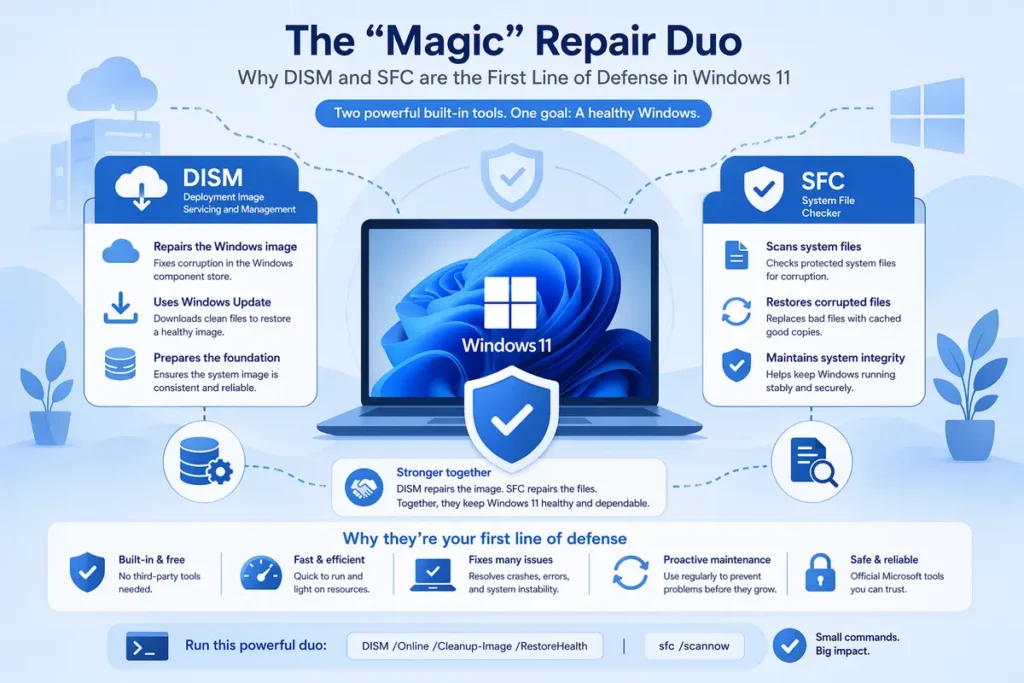
In the world of IT troubleshooting, telling a user to run SFC and DISM has become the modern equivalent of “Have you tried turning it off and on again?” It seems like a generic cure-all, but there is a scientific reason why these commands are more relevant now than ever—especially for users of Office 365 and Microsoft Teams.
As Windows 11 evolves into a “Software as a Service” (SaaS) model, the line between your operating system and your productivity apps has blurred. Here is why these tools are the essential “vitamins” for a healthy PC.
The Dynamic Duo: Understanding the Difference
While they are often run together, these two tools perform very different surgeries on your system:
1. DISM (Deployment Image Servicing and Management)
Think of DISM as the “Master Architect.” Before you fix a house, you need to make sure the blueprints are correct. DISM goes out to the Windows Update servers and downloads a fresh “Golden Image” of Windows. It compares your system’s core files to that perfect copy and replaces any corrupted blueprints.
- The Command: DISM /Online /Cleanup-Image /RestoreHealth
2. SFC (System File Checker)
Think of SFC as the “On-Site Inspector.” Once the blueprints (DISM) are verified, SFC walks through your actual installation. If it finds a system file that is missing or “broken” (corrupted), it uses the healthy files DISM just verified to swap in a brand-new copy.
- The Command: sfc /scannow

The Modern Link: Why Office 365 and Teams Care
Users often ask: “Why do I need to fix Windows files if only my Teams is crashing?” In Windows 11, apps like Microsoft Teams and Outlook (Office 365) are no longer isolated programs; they are deeply integrated into the OS through several shared “hooks”:
1. WebView2 and Edge Integration
Modern Teams and the new Outlook are essentially “web-app shells.” They rely on the WebView2 Runtime, a core Windows component. If a system file related to the Edge engine is corrupted, Teams won’t just lag—it will fail to launch or show a white screen. Running SFC repairs the underlying engine that Teams uses to breathe.
2. Identity and Security (The TPM Link)
Office 365 and Teams use Windows Hello and the TPM (Trusted Platform Module) for “Modern Authentication.” This is the security handshake that keeps you logged in. This handshake relies on Windows “Virtualization-based Security” (VBS) files. If these system files are even slightly out of sync, Office 365 will constantly “forget” your password or throw “TPM Trusted Platform Module” errors.
3. The Unified Notification Center
Teams and Office apps now route all alerts through the Windows 11 Notification Center. If the shell’s core components are corrupted, the “bridge” between Teams and your desktop breaks, leading to “ghost” notifications or app hangs.
Why It’s the “Cure for All Ails”
Windows 11 is constantly updating in the background. Sometimes, a tiny “packet” of data is dropped during an update, or a sudden power loss leaves a file “half-written.”
Because Office 365 now shares the same security libraries as Windows, a corruption in a Windows security file manifests as an “Office Activation Error” or a “Teams Login Loop.”
Running the Duo solves this by:
- Validating the Source: Ensuring your computer knows what a “good” file looks like (DISM).
- Replacing the Bad: Swapping out the corrupted bits that are choking your apps (SFC).
Summary for the User
If your Teams is acting up, or Outlook won’t stay connected, it might not be the app at all. It’s often the Windows foundation the app is standing on. Running DISM and SFC ensures the foundation is solid, allowing the modern “Cloud” elements of Office 365 to communicate securely with your local hardware.
Pro Tip: When IT Troubleshooting Always run DISM first. There is no point in SFC trying to fix files using a “repair source” that is also corrupted!